Canvas
Canvas Essentials for Faculty
The Canvas essentials resources provides information about the dashboard, the global navigation menu, how to personalize your course cards, and downloading the Canvas Teacher mobile app.
The Canvas Dashboard is the main landing page in Canvas. It is similar to the My Home area in D2L.
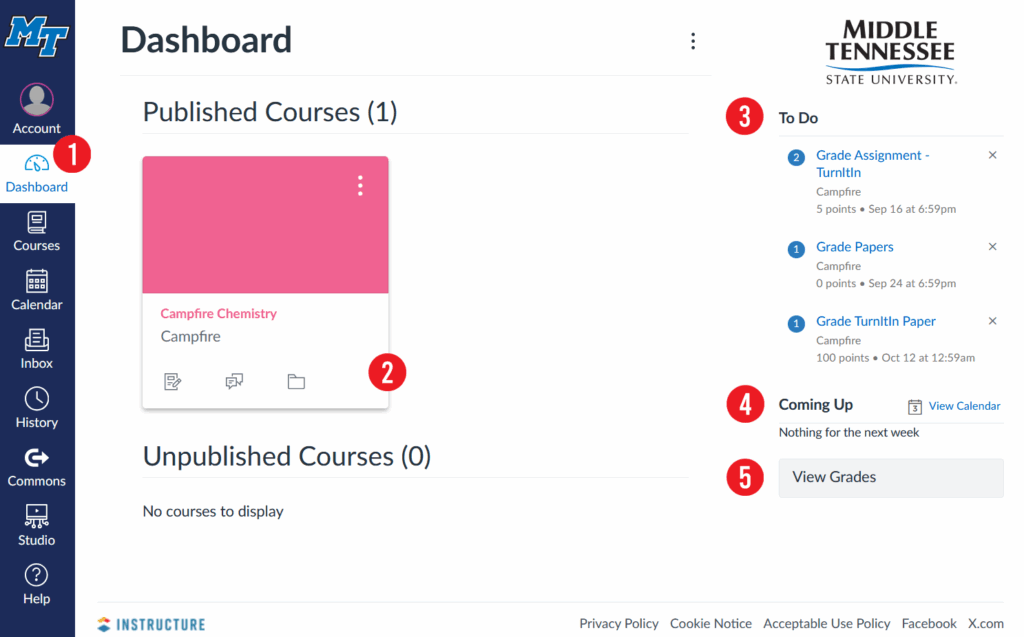
Items you will see on the Dashboard
- Global Navigation Menu – this menu is located on the left side of every page in Canvas.
- Course Cards – each card represents a course you have access to. It also has icons that show when there are new course announcements, assignments, or discussions.
These cards are divided into two categories: Published (live courses) and Unpublished. - To-Do List – shows upcoming assignments, discussions, and other activities that require your attention.
- Coming Up – shows upcoming events and tasks in your courses.
- View Grades – shows the list of courses you are teaching so you can go directly to the grades for that course.
Global announcements [not pictured] are important messages from the institution that may appear at the top of the dashboard page when posted.
View the video about how to use the dashboard as an instructor.
| Global Navigation Menu Item | Icon | Description |
|---|---|---|
| Account |  |
|
| Dashboard |  |
|
| Courses |  |
|
| Calendar |  |
|
| Inbox |  |
|
| History |  |
|
| Commons |  |
|
| Studio |  |
|
| Help |  | You have multiple ways to get help. All are accessible from within Canvas by selecting the Help icon in the global navigation menu. This includes 24/7 chat and phone from Canvas, MTSU Helpdesk, and training resources |
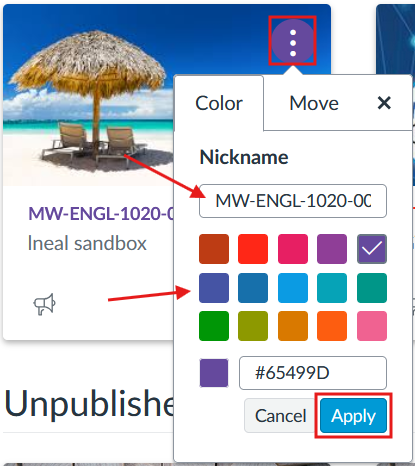
You have the ability to personalize your course cards for your own view. You can change the color of the course card and add a nickname for the course that appears to you in your Dashboard and when you look at the Courses menu.
Change the Color
The color chosen for a course is also used in the calendar and To Do list to visually show which course the item is associated with.
- Select the three-dot menu in the upper-right of the course card.
- Select a color from the list or enter a hex color code.
- Click Apply
Reorganize your Course Cards
You can drag and drop your course cards in the order you would like to view them.
Add a Nickname
This option could be helpful if you have multiple sections of the same class and would like to rename them to the days they are offered. These nicknames are only visible to you. The official course name will still appear for students. They can also set a nickname in their course card.
For example: Rename Research and Argumentative Writing – ENGL-1020-001 to MW ENGL 1020.
- Select the three-dot menu in the upper-right of the course card.
- Enter the nickname you would like to use in the Nickname field.
- Click Apply.