
Canvas
Accessibility Resources for Faculty
There are several tools available for faculty to ensure that course content is accessible. These resources check internal content within Canvas and do not check third-party integrations, such as publisher content and other external tools.
What are the Canvas accessibility standards?
This tool is now available (as of February 26, 2026).
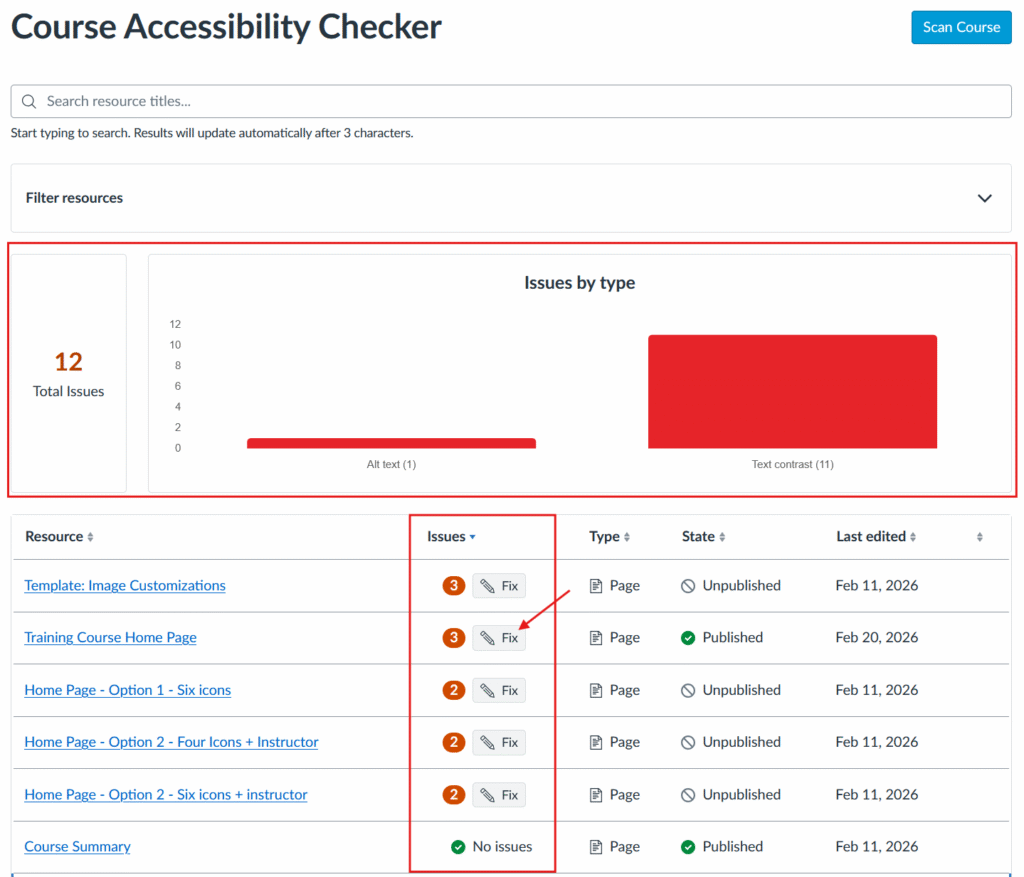
What is it? The Course Accessibility Checker allows you to perform a scan of your course that provides a high-level report, as well as a detailed breakdown of accessibility issues for learning resources.
How do I access it? To access the Course Accessibility Checker, select the Accessibility link in the course navigation, or select the Check Accessibility button on the Course Home, then select the Scan Course button. Once the report appears, you will see if there are issues, and you can select to fix the issues.
This tool does not check the accessibility of third-party applications that are integrated with our system. (For example: Publisher content (McGraw Hill, Pearson), H5P, LinkedIn Learning).
If you have received an accommodation request from a student to receive extended time on assignments or quizzes, the information below will provide instructions about how to do this in Canvas.
Add extended time on quizzes for a student
- Select the three-dot menu to the right of the quiz and choose Build from the menu, or open the quiz and select the Build button at the bottom of the page.
- Select the Moderate tab

Course Accommodation
This option allows you to set the assessment accommodations that will apply to all quizzes in the course.
- When viewing the Moderate tab, select the student’s name in the left-hand column.
- The Course Accommodation options box will appear.
- Select the Time adjustments drop-down box and select one of the options:
- Give additional time – allows you to enter additional time in Hours and Minutes.
- Remove time limit (unlimited)
- Time limit multiplier – allows you to enter a multiplier to be applied to all quizzes/exams.
- Reduced answer choices toggle – if selected, will remove one incorrect answer from multiple choice questions that have 4 or more answer choices.
- If you would like these settings to apply to quizzes already in progress, select the Apply these changes to the in-progress attempts as well option.
Quiz Accommodation
This option allows you to set the assessment accommodations on a particular quiz.
- When viewing the Moderate tab, select the edit icon to the far right of the student’s name.
- The Current Quiz Accommodation options will appear.
- You can allow for the following options:
- Additional attempts – enter the number of attempts allowed for the particular student.
- Time adjustments
- Give additional time – allows you to enter additional time in Hours and Minutes.
- Remove time limit (unlimited)
- Reduced answer choices toggle – if selected, will remove one incorrect answer from multiple choice questions that have 4 or more answer choices.
NOTE: These options will only be applied to the current quiz and in-progress attempts for the current quiz.