
LockDown Browser for Faculty


Getting Started

If you would like to use Respondus Lockdown Browser (LDB) + Monitor, we have a few recommendations for you to get started.

The LockDown Browser (LDB) link must be visible in your course navigation.

If you do not see it, you will need to enable it by going to Settings – Navigation. Look for the LockDown Browser option, choose the three-dot (kabob) to the right, and choose Enable. Click Save.

NOTE: Only people who are listed as a Teacher role in the course can open the LockDown Browser tool and enable a quiz to use LDB or Monitor.

Create a practice quiz that has the LDB (and Monitor, if using) so they can download the software and go through a test without any stakes.

Practice Quiz

We have crafted a generic quiz that can be used to provide students with a practice exam to help them become familiar with the use of LockDown Browser and Monitor.

Use the attached file to upload the quiz into your Canvas course shell:

  1. Download the quiz file
  2. Navigate to the Canvas course in which you plan to use Respondus.
  3. Go to the Quizzes area
  4. Create a New Quiz, giving it a title and configuring the points and availability dates, etc.
  5. Click the Build button to add questions to the quiz.
  6. Use the 3-dot (kabob) menu in the upper right on the build screen and select Import Content
  7. Locate the .zip file downloaded from step 1.
  8. Upon completion, review the questions and test information to ensure satisfaction with the options.
  9. Click Return to complete the creation of the quiz.

View the Instructor Quick Start Guide

Watch the Training Video for Respondus LockDown Browser and Monitor provided by Respondus.
This video is available to people associated with MTSU. You may be required to authenticate using your campus login credentials.

1. Select the LockDown Browser link to enable the quizzes you would like to use Lockdown Browser (and Monitor).
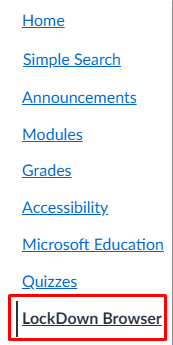
Lockdown Browser link in course navigation

2. Once in the Dashboard, select the arrow to the left of the quiz.

3. Choose Settings

Select Settings

4. Select Require LockDown Browser for this exam to enable Lockdown Browser

5. If you plan to use Monitor, the option to enable it will appear. Select Require Respondus Monitor (automated proctoring) for this exam.

6. Additional options will appear.

7. Once you have selected all options, choose Save + Close.

Respondus LDB & Monitor Options

8. Once you select to require the LDB, the title of the quiz will be updated to include either Requires Respondus LockDown Browser if you enable LDB or Requires Respondus LockDown Browswer + Webcam if you enable Monitor. If you enable Monitor, the last column will let you know what was enabled in terms of Webcam and/or Screen Recording.

LockDown Browser Dashboard - enabled quizzes.

Pearson MyLab

To link to a MyLab and Mastering course to your institution’s Respondus Monitor license, the instructor needs to log into the institution’s Canvas and navigate to the LockDown Browser Dashboard. Select the “Other Systems” tab. Find the section for Pearson MyLab and copy the code shown (the code is unique for each instructor). Return to the MyLab course and use “Enter Code” to complete the linking.

Don’t see the LockDown Browser link in the course navigation?

Add it by going to the course Settings link, then the Navigation tab. Find LockDown Browser and choose the three-dots to the right and select Enable. Click Save. 

More about linking Respondus to Pearson

McGraw-Hill ALEKS

You will need to reach out to your McGraw-Hill ALEKS rep.

More about linking Respondus to ALEKS

Cengage WebAssign

To use Respondus Monitor with WebAssign assessments, sign into your WebAssign class as an instructor. Select the Schedule link for the assessment. From the Schedule page, go to the menu for the corresponding test and select Edit Restrictions. Select the LockDown Browser option and then Respondus Monitor.

More about linking Respondus to WebAssign

Hawkes Learning

To use Respondus Monitor with a Hawkes Learning course, sign in as an instructor and select “Additional Settings” for any WebTest. Select the desired LockDown Browser and Respondus Monitor options. (Note: If the Respondus Monitor option is not shown, your Hawkes Admin will need to set up the integration.)

More about linking Respondus to Hawkes Learning


Faculty Resources

Use the following resources to explore the Lockdown Browser and Monitor features and functions and how to use them.

Setting up LockDown Browser

Creating a Practice Quiz

Training Video for Respondus LockDown Browser and Monitor

Watch the Training Video for Respondus LockDown Browser and Monitor provided by Respondus.
This video is available to people associated with MTSU. You may be required to authenticate using your campus login credentials.