
Canvas
Canvas Resources for Students
The following resources are designed to support MTSU’s transition from D2L to Canvas, ensuring faculty, staff, and students are prepared to succeed with Canvas. These resources include Canvas-provided tools, MTSU-specific support, and external options to facilitate learning and course management.
Don’t have a class to look at and see what Canvas is like? You can self-enroll in a sample course called Getting to Know Canvas – Student Edition. This course is a sample course only and is not associated with any academic courses. This will allow you to view a course through the web and/or the Canvas Student Mobile App.
Use the Canvas Student Mobile App


- Go to the appropriate app store.
- Search for “Canvas Student”.
- Download and install the Canvas Student app (developed by Instructure).
Logging In & Accessing the MTSU Account
- Open the Canvas Student app.
- Use a QR code to access Canvas for MTSU
- Select the QR Code link at the bottom of the app screen.
- Access your account on a web browser, select the Account icon in the global navigation bar.
- Choose QR for Mobile Login
- A warning message about sharing the QR code will appear. Do not share this QR code; it connects directly to your account. Click Proceed.
- Scan the QR code
- It will take you into your MTSU Canvas account.
- Manually enter the information:
- Tap Find my school.
- Enter MTSU and select Middle Tennessee State University (MTSU) from the list.
- Log in using your MTSU credentials (username and password).
The Canvas Dashboard is the main landing page in Canvas. It is similar to the My Home area in D2L.
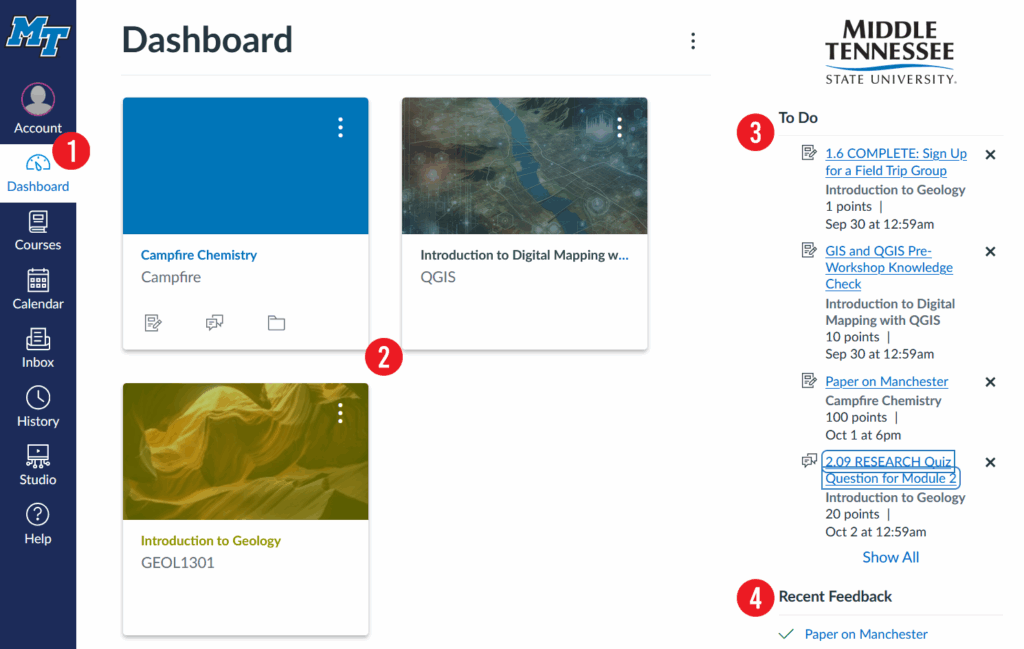
Items you will see on the Dashboard
- Global Navigation Menu – this menu is located on the left side of every page in Canvas.
- Course Cards – each card represents a course you have access to. It also has icons that show when there are new course announcements, assignments, or discussions.
- To-Do List – shows upcoming assignments, discussions, and other activities that require your attention.
- Recent Feedback – shows recent feedback on assessments that have been posted in your courses.
Below the Recent Feedback, there is a View Grades button [not visible in the image above] that will allow you to go to a page with all the courses you are taking, and you can see your current grade. You can also select the course, and it will go to the grades area of that course.
Global announcements [not pictured] are important messages from the institution that may appear at the top of the dashboard page when posted.
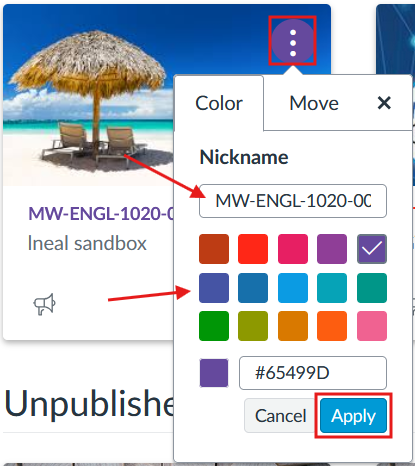
You have the ability to personalize your course cards for your own view. You can change the color of the course card and add a nickname for the course that appears to you in your Dashboard and when you look at the Courses menu.
Change the Color
The color chosen for a course is also used in the calendar and To Do list to visually show which course the item is associated with.
- Select the three-dot menu in the upper-right of the course card.
- Select a color from the list or enter a hex color code.
- Click Apply
Add a Nickname
This option could be helpful if you want to show the course details instead of the entire name of the course in your view. The nickname will appear in the Dashboard, the mobile app, and the Courses list.
For example: Rename Research and Argumentative Writing – ENGL-1020-001 to MW-ENGL-1020-001.
- Select the three-dot menu in the upper-right of the course card.
- Enter the nickname you would like to use in the Nickname field.
- Click Apply.
What is Canvas Studio?
Canvas Studio is a media creation and storage tool in Canvas that allows you to create and provide media for your courses. You can upload media, create videos, link to YouTube videos, and create video quizzes. Students can also use Studio to create videos to submit for assessments and discussions.
How to Access Canvas Studio
- Select the Studio icon on the global navigation menu.
- Select Studio on the course navigation menu. (This option is only available if you have made it visible in the Course Settings – Navigation area.)
- When editing a page using the Rich Content Editor (RCE), select the Apps icon and choose Studio, then select the appropriate video to add to the page.
Accepted Media Types
You can upload media files you already created. Studio accepts the following file types of files and has a 10GB file size limit.
- Video: MP4, MOV, WMV, AVI, FLV, etc. (common video formats)
- Audio: MP3, WMA, WAV
- Images: JPG, PNG, GIF, SVG, BMP, TIFF
- Captions: SRT, VTT
Additional Resources:
- Overview: How to use Canvas Studio
- View the full list of supported file formats for Studio.
Creating, Editing, Managing, and Uploading Media
Depending on the browser you are using, the options will be slightly different. There are two types of videos you can create. Webcam only and screen capture. The Webcam option will only include your video image and voice (if selected). The Screen Capture option will allow you to record a selected window or screen on your computer, your video image, and your voice.
Creating Videos
- Chrome or Edge
- Firefox or Safari
Editing Videos
- Using the Canvas Studio media editor
- How to edit a video thumbnail
- How to add annotations
- How to cut sections of a media file
- How to trim a media file
Managing Media
- Downloading media from Studio
- How to Share a media file
- Creating and managing Collections of media
- Adding and managing tags on media
Uploading Media
You can upload different types of media to Canvas Studio. View the full list of supported file formats.