Getting Started
The Image block is used to insert a single image into your page. You can upload an image, choose one from your media library, and adjust its alignment and size.
You can find demos and usage guidance for this block on the official website.
Accessibility Best Practice
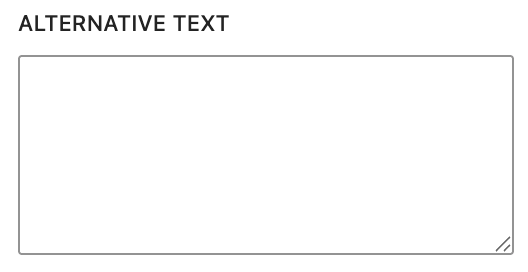
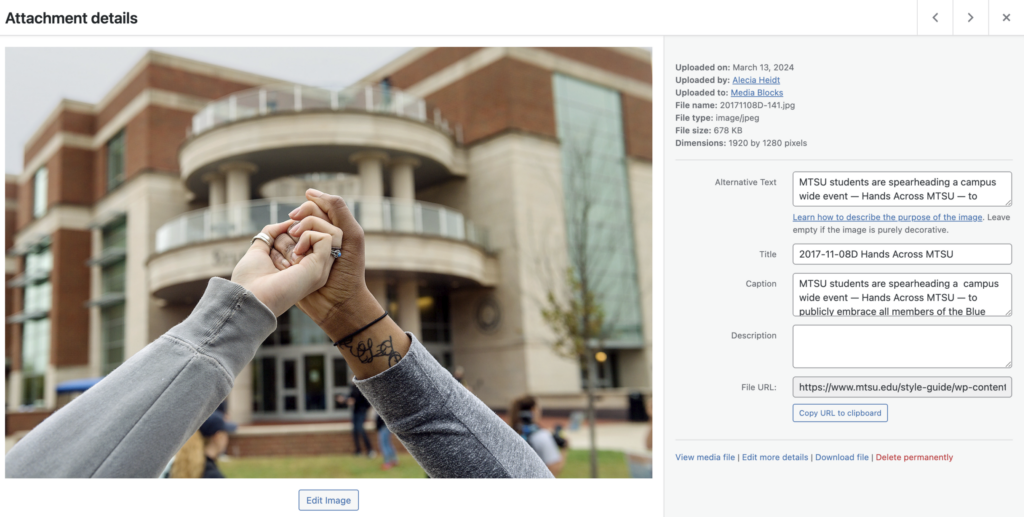
Always include descriptive alt text so screen reader users understand what the image conveys. Best practice is to add the text to the Alternative Text box when uploading your image to the media library.
Alternative Text Best Practice
Write clear, descriptive alt text that explains the purpose and content of the image. Good alt text should briefly describe what a user needs to understand if they cannot see the image.
- Avoid phrases like “image of” or “picture of,” since screen readers already announce it as an image.
- Focus on the meaning or purpose of the image, not every visual detail.
- Be concise but specific—usually one short sentence is enough.
- If the image contains important text, include that text in the alt description.
Keep in Mind
MTSU has recently implemented a plugin to check that all images have alt text. Alt text is an essential piece of keeping our website accessible to all.
If you’re seeing the following at the top of your WordPress editing screen, you’re missing alt text on one or more of your images.

To resolve the issue, add your alt text on the image within the page itself.
- Click the page name to edit your page
- Open up your WordPress settings panel by clicking the icon that looks like the following:

- Click the image
- Fill out the Alternative Text box