
MTSU Web Training Hub
Editing Content
Now that you’re familiar with the WordPress Dashboard, it’s time to start editing content. In this module, you’ll learn how to open pages, edit content, add blocks, rearrange content, and save your changes.
Learning Objectives
After completing this module, you will be able to:
- Locate and edit an existing page
- Identify the key areas of the Block Editor
- Edit existing content
- Add and rearrange blocks
- Save your changes
Opening a Page
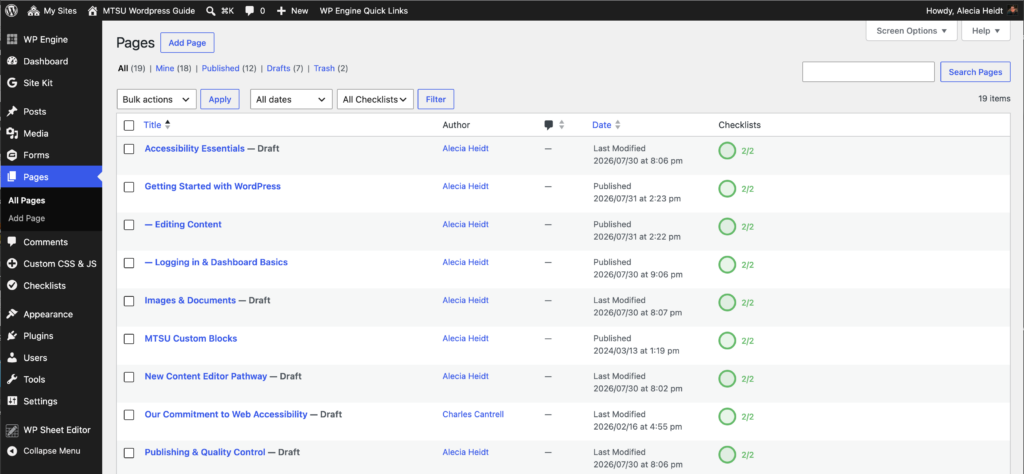
- Select Pages from the left navigation menu.
- Locate the page you want to edit.
- Hover over the page title.
- Select Edit.
Quick Tip
Use the search box to quickly locate a page if your site contains many pages.
Understanding the Block Editor
When you open a page, you’ll see the WordPress Block Editor.
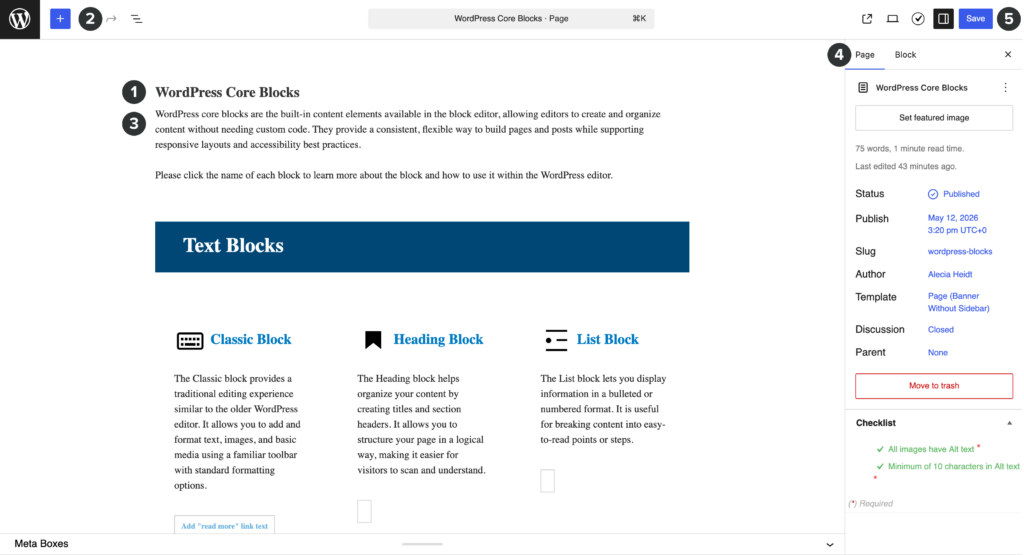
1. Page Title
The name of the page you are editing.
2. Block Inserter
Add new blocks such as headings, paragraphs, images, buttons, and lists. Blocks are the individual content elements used to build pages in WordPress.
3. Content Area
Create and edit content using WordPress blocks.
4. Settings Panel
Access page settings and block-specific settings.
5. Save
Save your changes to the website.
Editing Text
To update text:
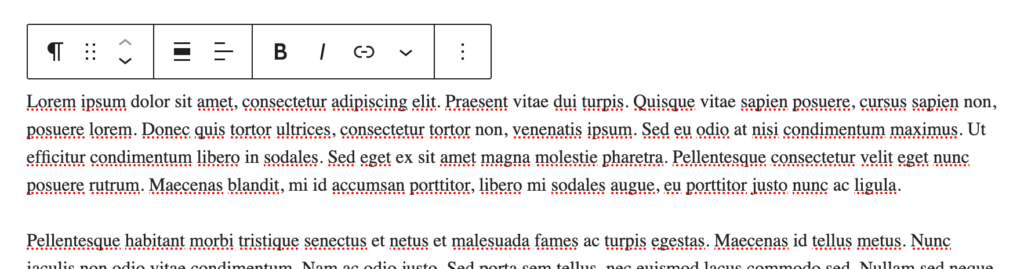
- Select the block containing the content.
- Place your cursor where changes are needed.
- Edit the text directly.
- Changes may be automatically saved while you work. To ensure your latest updates are saved, always select Save before leaving the editor.
Adding a New Block
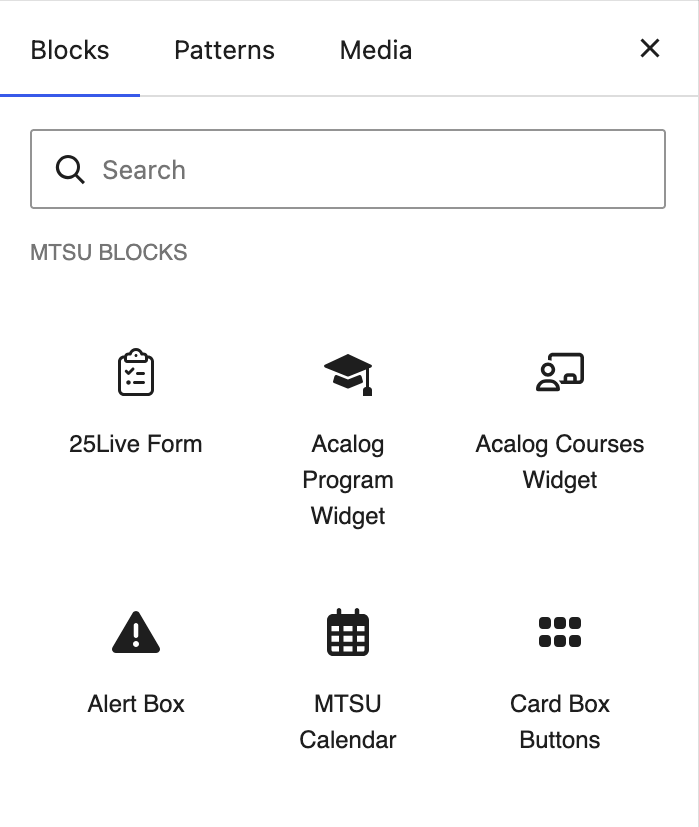
- Select the + Block Inserter.
- Search for a block.
- Select the desired block.
- Add your content.
Example blocks:
- Heading
- Paragraph
- Image
- Button
Moving and Rearranging Blocks
Blocks can be moved within a page.
To move a block:
- Select the block.
- Use the up/down movement controls.
- Or drag and drop the block to a new location.

Saving Your Changes
As you make changes, WordPress periodically saves your work in the background. To ensure your latest updates are saved, always select Save before leaving the editor.
Before Saving
Review spelling and grammar
Verify links
Confirm images display correctly
Check headings for proper structure
Ensure your content appears as expected
Before Moving On
Before continuing, make sure you can:
Open a page for editing
Edit content within a block
Add a new block
Locate Forms
Move and rearrange blocks
Save your changes
Next Module: Working with Blocks
Learn how to:
- Understand how blocks are used to create content
- Find blocks using the Block Inserter
- Add new blocks to a page
- Move and rearrange blocks
- Access block settings and options
- Use the Block Documentation Library
Need Help?
Submit a Website Change Request
Request assistance with website updates, troubleshooting, or issues.
Request Website Access
Need access to edit a website? Submit an access request.
WordPress Training Hub
Return to the training homepage.
Block Documentation
Learn more about specific WordPress blocks.