
MTSU Web Training Hub
Images & Documents
In this module, you’ll learn how to upload and manage media, add images to your content, write effective alternative text, link to documents accessibly, and understand how media slugs help manage document URLs.
Learning Objectives
After completing this module, you will be able to:
- Upload images and documents to the Media Library
- Add images to pages and posts
- Write effective alternative text
- Link to documents using descriptive link text
- Understand the basics of media slugs
Working with Images
Images can enhance content, support key messages, and improve the user experience when used appropriately.
When selecting images:
- Use high-quality images.
- Ensure the image supports the content.
- Avoid decorative images that do not add value.
- Select images that are relevant to the surrounding content.
Tip: Images should support the content on the page, not replace it.
Uploading Images
Images can be uploaded through the WordPress Media Library or directly from supported blocks within the editor.
Uploading Through the Media Library
- Select Media from the WordPress navigation menu.
- Select Add New Media File.
- Upload your image.
- Add alternative text and other metadata as needed.
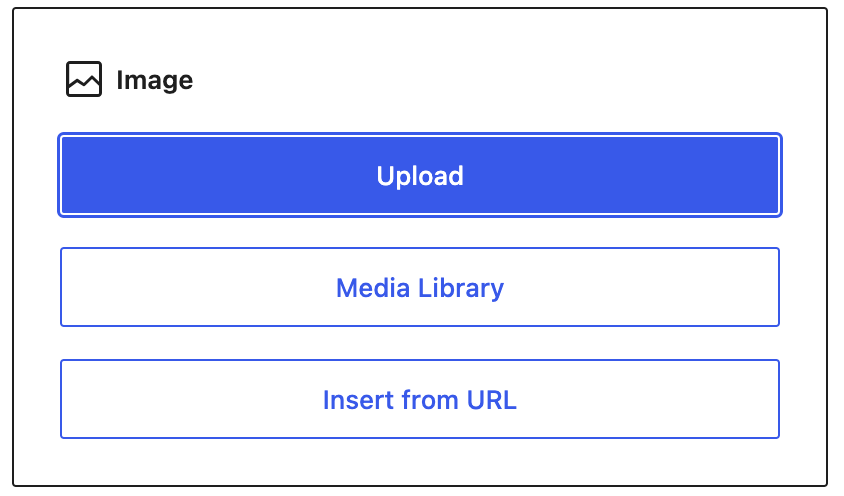
Uploading Through an Image Block
- Add an Image block to the page.
- Select Upload.
- Choose an image from your computer.
- Save your changes.
Updating Existing Documents
When updating an existing document, use the Replace Media Files tool whenever possible. This preserves existing file URLs and helps prevent broken links throughout your website.
Benefits
- Prevents broken document links\
- Preserves existing URLs
- Simplifies document maintenance
- Ensures visitors access the most current version
Tip: Before replacing a document, verify that the updated file has been reviewed and approved for publishing.
Alternative Text
Alternative text (alt text) describes the content or purpose of an image for visitors using screen readers and other assistive technologies.
Alternative text should clearly communicate the purpose of the image in the context of the page.
Good Example
✅ Student working in a chemistry laboratory.
Poor Example
❌ image.jpg
❌ photo
❌ picture
Important: MTSU websites use an accessibility tool that requires alternative text for meaningful images before they can be published. For more information about how the tool works and how to write effective alternative text, refer to the ServiceNow Knowledge Base article.
Writing Effective Alternative Text
- Describe the image’s purpose or content.
- Keep descriptions concise and meaningful.
- Do not begin with “Image of” or “Picture of.”
- Consider how the image supports the surrounding content.
Working with Documents
Documents such as PDFs, Word files, and spreadsheets can be uploaded to the Media Library and linked throughout your website.
Common document types include:
- PDF files
- Word documents
- Excel spreadsheets
- PowerPoint presentations
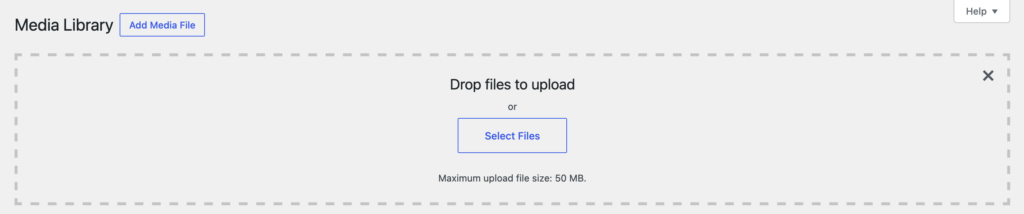
Uploading a Document
- Select Media from the WordPress navigation menu.
- Select Add New Media File.
- Upload the document.
- Copy the document URL or add it to a page using a link.
Linking Documents
When linking to documents, use descriptive link text that helps visitors understand what they are about to open or download.
Good Example
✅ Download the Undergraduate Admissions Checklist (PDF)
Poor Example
❌ Click here
Linking Best Practices
- Clearly identify the document being linked.
- Include the file type when appropriate (PDF, Word document, spreadsheet, etc.).
- Avoid vague phrases such as “Click here” or “Read more.”
- Verify the document opens correctly after publishing.
Before Moving On
Before continuing, make sure you can:
Upload an image or document to the Media Library
Add an image to a page
Write effective alternative text
Link to a document using descriptive link text
Understand the purpose of media slugs
Next Module: Accessibility Essentials
Learn how to:
- Structure content using headings
- Write descriptive link text
- Create accessible lists and tables
- Identify common accessibility issues
- Improve the experience for all website visitors
Need Help?
Submit a Website Change Request
Request assistance with website updates, troubleshooting, or issues.
Request Website Access
Need access to edit a website? Submit an access request.
WordPress Training Hub
Return to the training homepage.
Block Documentation
Learn more about specific WordPress blocks.