
Edit the Top Banner
The Top Banner provides visual context and introductory information throughout your website.
Your website uses a single shared Top Banner. Any updates made to the Top Banner will appear on all pages that use a banner-enabled template.
Pages using a template without a banner will not display the Top Banner.
Use this job aid to update banner images, text, and other content displayed within the shared Top Banner template part.
Before You Begin
- Ensure any new imagery has been approved for use.
- Verify content has been reviewed for accuracy.
- Understand that changes will affect all pages that display the Top Banner.
- Review updates carefully before publishing.
Steps
1
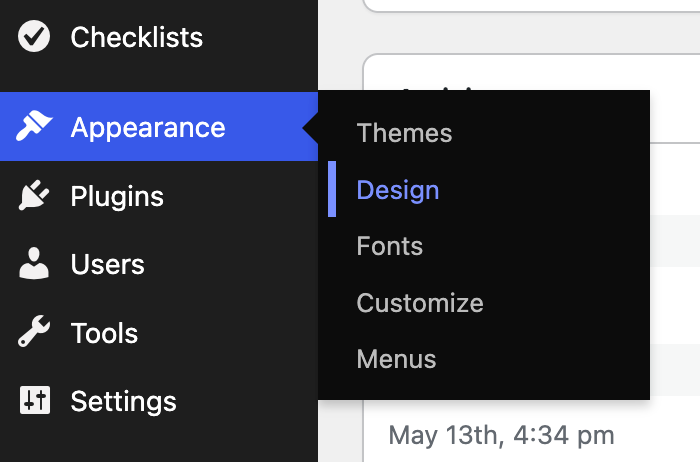
Access the Design Editor
- Log in to WordPress.
- Select Appearance from the left navigation menu.
- Click Design.
2
Open Template Parts
- Select Patterns from the Design Editor.
- Choose All template parts.
- Open the list of available template parts.

3
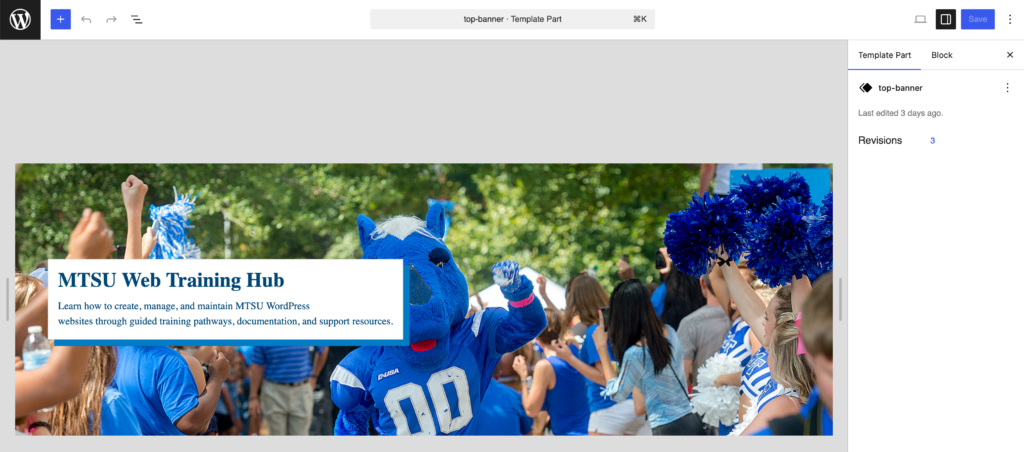
Open the Top Banner Template Part
- Locate top-banner.
- Select the template part to begin editing.

4
Update Banner Content
- Select the image to replace the banner image.
- Select text content to make updates.
- Make the necessary changes.
5
Save Changes
- Review your updates.
- Select Save.
- Verify the banner on the live website.

Tips
Use high-quality images
Choose clear, professional images that represent your website and display well across different screen sizes.Keep messaging concise
Banner text should communicate key information quickly and be easy for visitors to scan.Use site-wide messaging
Because the Top Banner appears throughout the website, content should be relevant across all pages that display the banner.Review accessibility requirements
Ensure images, text, and any linked content continue to support accessibility best practices.Verify changes on multiple pages
Review several pages before and after publishing to confirm the banner displays correctly throughout the website.
Common Mistakes to Avoid
Using page-specific messaging Because the Top Banner appears throughout the website, content should be relevant across all pages that display the banner.
Assuming the banner only affects the current page Changes made to the Top Banner appear on all pages using a banner-enabled template.
Publishing without reviewing changes Always review updates on the live website before considering the task complete.
Using outdated images or information Review banner content regularly to ensure it remains accurate and relevant.