
MTSU Web Training Hub
Restore a Previous Version
WordPress automatically saves revisions of pages and posts as changes are made. If content is accidentally removed or updated incorrectly, you may be able to restore a previous version.
Use this job aid to view and restore saved revisions.
Before You Begin
- Confirm you are restoring the correct page.
- Review available revisions carefully before restoring content.
- Understand that restoring a revision will replace the current content.
Steps
1
Open the Page
- Log in to WordPress.
- Select Pages from the left navigation menu.
- Open the page you want to restore.
2
Open Revisions
- Open the Page settings panel.
- Locate the Revisions section.
- Select the revisions link.

3
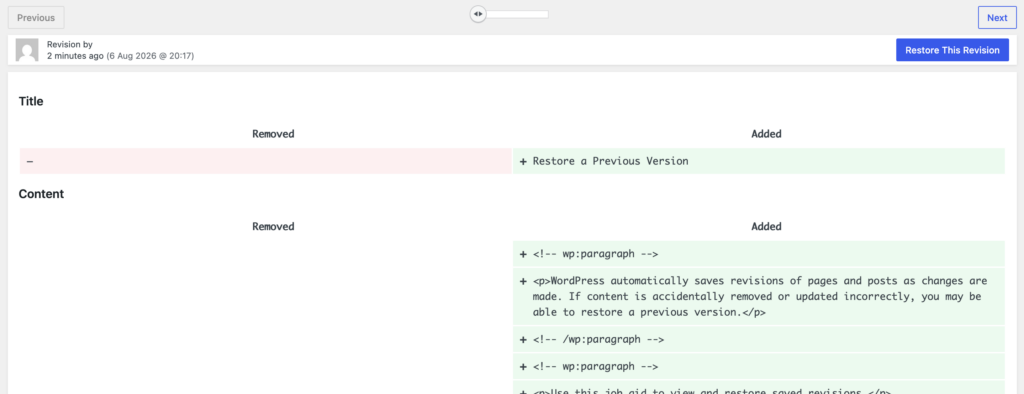
Review Available Revisions
- Use the revision slider to compare versions.
- Review the content changes.
- Locate the version you want to restore.
4
Restore the Revision
- Select Restore This Revision.
- Confirm the page displays the expected content.

5
Save the Page
- Review the restored content.
- Click Update or Save to save your changes.
Tips
Review revisions before restoring
Compare versions carefully to ensure you select the correct revision.Use revisions to recover content
Revisions can help restore accidentally deleted or overwritten content.Verify the restored page
Review the page after restoration to confirm the expected content is displayed.Update the page after restoring
Changes are not finalized until the page is updated.
Common Mistakes to Avoid
Restoring the wrong revision
Review revision dates and content carefully before restoring.Skipping content verification
Always review the restored page before publishing changes.Forgetting to update the page
Restoring a revision does not finalize changes until the page is updated.Assuming all content can be recovered
Only saved revisions are available for restoration.
Need Help?
Submit a Website Change Request
Request assistance with website updates, troubleshooting, or issues.
Request Website Access
Need access to edit a website? Submit an access request.
WordPress Training Hub
Return to the training homepage.
Block Documentation
Learn more about specific WordPress blocks.