
MTSU Web Training Hub
Review Form Submissions
Gravity Forms stores form submissions within WordPress, allowing authorized users to view, search, and manage entries without relying solely on email notifications.
Use this job aid to review submissions collected through a Gravity Forms form.
Before You Begin
- Confirm you are reviewing the correct form.
- Remember that form submissions may contain sensitive information.
- Follow departmental guidelines when handling submitted data.
Steps
1
Open Gravity Forms
- Log in to WordPress.
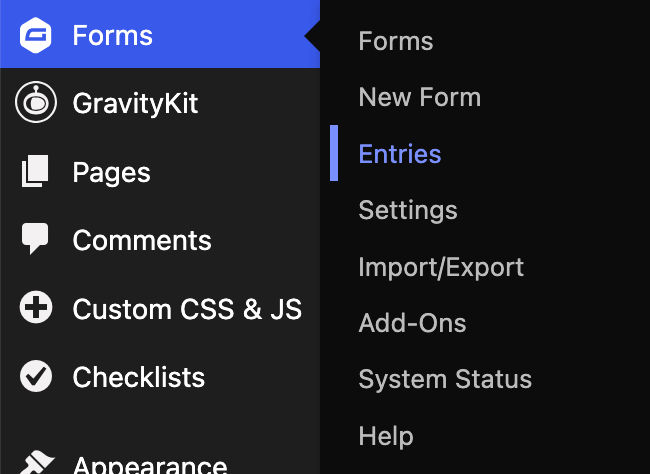
- Hover over Forms in the left navigation menu.
- Choose Entries
2
Select a Form
- Review the list of available forms.
- Locate the form you want to review.
- Select the form to view its submissions.

3
Review and Search Entries
- Browse the list of collected submissions.
- Select an entry to view additional details.
- Use the search field to locate specific submissions.
- Apply available filters as needed.
- Review the filtered results.

Note: Exporting entries is managed through the Import/Export area of Gravity Forms and is a separate process from reviewing form submissions.
For instructions on exporting form entries, refer to the official Gravity Forms documentation.
Tips
Review submissions regularly
Monitor form entries routinely to ensure requests receive timely responses.Use search and filtering tools
Search and filtering options can help locate specific submissions more efficiently.Verify submissions were received
If a user reports an issue, check the entry list to confirm whether a submission was successfully recorded.Use exports when appropriate
Exporting entries can make it easier to share data, create reports, or maintain departmental records.Protect sensitive information
Only share form submissions with individuals who have a legitimate business need to access the information.
Common Mistakes to Avoid
Relying solely on email notifications
Email notifications can be missed or deleted. Periodically review entries within Gravity Forms.Reviewing the wrong form
Always confirm you are viewing entries for the correct form.Ignoring old submissions
Regular reviews help ensure requests are not overlooked.Sharing sensitive information unnecessarily
Form entries may contain information that should only be accessed by authorized individuals.Exporting more information than needed
Only export the data required for the task at hand and follow applicable record management practices.
Related Resources
For detailed information about viewing and managing entries, refer to the official Gravity Forms documentation:
For instructions on exporting form entries, refer to the official Gravity Forms documentation:
Need Help?
Submit a Website Change Request
Request assistance with website updates, troubleshooting, or issues.
Request Website Access
Need access to edit a website? Submit an access request.
WordPress Training Hub
Return to the training homepage.
Block Documentation
Learn more about specific WordPress blocks.