
MTSU Web Training Hub
Upload or Update a Document
Documents such as PDFs, forms, reports, and guides can be uploaded to the WordPress Media Library and shared throughout your website.
Use this job aid to upload a new document or update an existing document.
For websites with the Replace Media Files plugin enabled, updating an existing document may help preserve existing links.
Before You Begin
- Verify the document has been reviewed and approved.
- Ensure the document is the final version before uploading.
- Use descriptive file names whenever possible.
- Review documents periodically to ensure they remain current.
Steps
1
Open the Media Library
- Log in to WordPress.
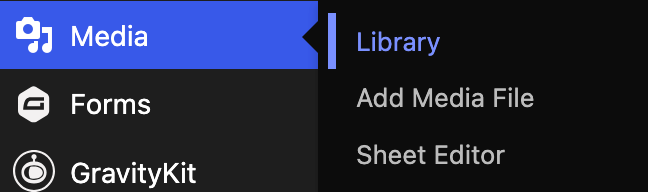
- Select Media from the left navigation menu.
- Click Library.
2
Upload a New Document
- Select Add Media File.
- Upload the document from your computer.
- Wait for the upload to finish.

3
Locate the Document
- Find the uploaded document in the Media Library.
- Open the file details.

4
Copy the Document URL (Optional)
- Locate the file URL within the document details.
- Copy the URL if needed for linking.

5
Update an Existing Document (If Available)
- Open the existing document.
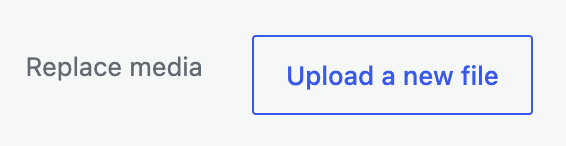
- If the Replace Media Files option is available, use it to upload a new version of the document.
- It’s safest to use the Just replace the file option
- Verify the updated document displays correctly.
Note: The Replace Media Files plugin may not be available on all websites.
Tips
Use descriptive file names
Choose file names that clearly identify the purpose of the file.Use appropriately sized images
Large images can impact page performance and loading times.Write meaningful alternative text for images
Alternative text improves accessibility and helps describe image content.Keep files organized
Consistent naming practices make future maintenance easier.Verify files after uploading
Review uploaded files to ensure they display correctly.
Common Mistakes to Avoid
Uploading multiple versions of the same file
Multiple copies of the same image or document can make it difficult to determine which version is current and may increase maintenance challenges over time.Using unclear file names
Generic file names such as document.pdf, image.jpg, or new-file.pdf make it harder to locate and update files in the future.Leaving outdated files online
Older images and documents can create confusion for visitors and may result in outdated information remaining available on the website.Uploading oversized images
Large image files can affect page performance and increase page load times. Optimize images before uploading whenever possible.Leaving alternative text blank for images
Alternative text helps visitors using assistive technologies understand the purpose and content of an image and supports accessibility best practices.Replacing the wrong file
Verify you have selected the correct image or document before uploading a replacement version.
Need Help?
Submit a Website Change Request
Request assistance with website updates, troubleshooting, or issues.
Request Website Access
Need access to edit a website? Submit an access request.
WordPress Training Hub
Return to the training homepage.
Block Documentation
Learn more about specific WordPress blocks.