
MTSU Web Training Hub
Forms & Data Collection
Forms provide a convenient way for visitors to submit information, request services, register for events, and contact departments.
As a Site Manager, you may be responsible for creating, updating, and maintaining forms used throughout your website. Properly managed forms help ensure information is collected accurately and that submissions reach the appropriate people.
In this module, you’ll learn how forms are used on MTSU websites, how to maintain existing forms, and best practices for creating a positive experience for users.
Learning Objectives
By the end of this module, you will be able to:
- Explain the purpose of online forms.
- Identify common uses for website forms.
- Understand the key components of a form.
- Apply best practices for creating and maintaining forms.
- Determine when to contact the Web Team for assistance.
Why Forms Matter
Forms allow visitors to interact with your website and submit information electronically.
Common uses include:
- Contact requests
- Event registration
- Information requests
- Appointment requests
- Feedback collection
Well-designed forms help visitors complete tasks quickly while providing departments with the information they need.
Understanding Gravity Forms
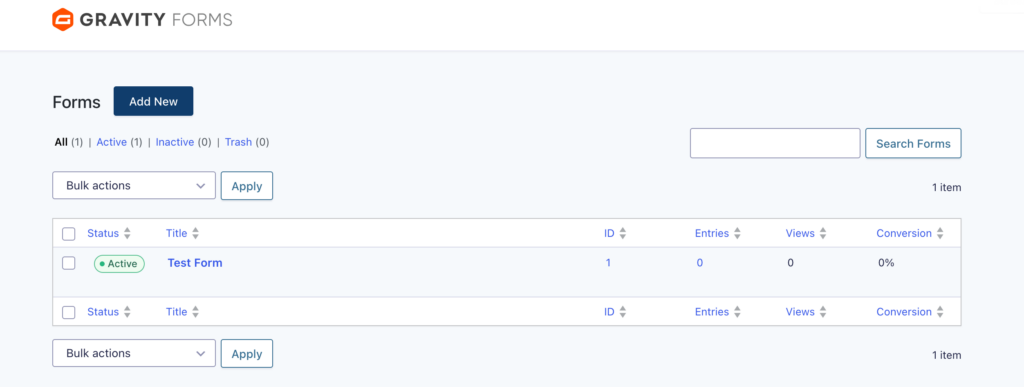
Many MTSU websites use Gravity Forms to collect and manage information.
Gravity Forms allows Site Managers to:
- Create forms
- Collect submissions
- Organize form fields
- Deliver responses through email notifications
- Manage form entries
Depending on your site’s needs, forms may be simple or highly customized. Some advanced form functionality may require assistance from the Web Team.
Key Form Components
Most online forms are built from a few common components that determine what information is collected and how submissions are handled.
Form Fields
Fields collect information from visitors.
Common examples include names, email addresses, phone numbers, and comments.
Required Fields
Required fields must be completed before a form can be submitted.
Use required fields only when the information is necessary.
Notifications
Notifications send submitted information to designated recipients.
Review notification settings regularly to ensure submissions reach the correct people.
Confirmations
Confirmations provide feedback after a form has been submitted.
They help visitors understand that their submission was received successfully.
Designing Effective Forms
When creating or updating forms, focus on the visitor experience.
Keep Forms Simple
Visitors should be able to complete forms quickly and easily.
Best Practices
✅ Ask only for needed information
✅ Use clear field labels
✅ Group related information together
✅ Keep instructions brief
Avoid
❌ Long forms with unnecessary questions
❌ Confusing field labels
❌ Collecting information that will not be used
Use Clear Language
Write labels and instructions using plain language.
Good Examples
✅ Email Address
✅ Preferred Contact Method
✅ Event Registration
Less Effective Examples
❌ Information
❌ Other Details
❌ Additional Data
Accessibility Considerations
Accessibility helps ensure all visitors can successfully complete and submit forms, regardless of how they access your website.
Best Practices
- Use clear and descriptive field labels
- Provide helpful instructions when needed
- Avoid relying solely on color to communicate information
- Make error messages clear and understandable
- Test forms regularly
Accessible forms improve the experience for all users.
Reviewing and Maintaining Forms
Forms should be reviewed periodically to ensure they continue functioning properly.
Review:
- Notification recipients
- Confirmation messages
- Form instructions
- Required fields
- Submission destinations
Changes in personnel or department processes may require form updates.
Working with the Web Team
Some form requests may require assistance from the Web Team.
Examples include:
- Complex workflows
- Advanced form functionality
- Conditional logic questions
- Accessibility concerns
- Integration requests
- Troubleshooting form issues
When assistance is needed, submit a request through ServiceNow.
Additional Resources
For detailed instructions on creating and managing forms, refer to the official Gravity Forms documentation.
Note: Gravity Forms documentation is maintained by the plugin vendor and may differ slightly from the MTSU WordPress environment.
Form Management Best Practices
Effective forms are easy for visitors to complete and simple for departments to maintain. Following these best practices can help improve the user experience, reduce maintenance issues, and ensure submissions are collected accurately.
Do
✅ Review forms regularly
✅ Verify notification recipients
✅ Keep forms concise
✅ Use clear instructions
✅ Test forms after making changes
✅ Remove outdated forms
Avoid
❌ Collecting unnecessary information
❌ Leaving inactive forms on the website
❌ Using unclear field labels
❌ Ignoring failed notifications
❌ Publishing forms without testing them
Site Manager Checklist
Use this checklist when reviewing website forms.
Verify notifications are sent to the correct recipients
Review field labels and instructions
Test form submissions
Confirm confirmation messages are accurate
Remove inactive or outdated forms
Verify forms remain accessible
Review required fields
Update forms to reflect current departmental processes
Remember
- Forms help visitors interact with your department online.
- Gravity Forms is commonly used to collect information on MTSU websites.
- Simple forms are often more effective than complex forms.
- Regular testing helps ensure forms continue working as expected.
- The Web Team can assist with complex form requests and troubleshooting.
Before Moving On
Explain the purpose of online forms
Identify common uses for website forms
Understand key form components
Apply best practices for creating and maintaining forms
Recognize accessibility considerations for forms
Determine when to contact the Web Team for assistance
Next Module: Site Maintenance & Quality Assurance
Learn how to:
- Review websites for outdated content
- Identify common website issues
- Check links, documents, and media
- Perform basic quality assurance reviews
- Maintain a healthy and reliable website over time
Need Help?
Submit a Website Change Request
Request assistance with website updates, troubleshooting, or issues.
Request Website Access
Need access to edit a website? Submit an access request.
WordPress Training Hub
Return to the training homepage.
Block Documentation
Learn more about specific WordPress blocks.