
MTSU Web Training Hub
Working with Blocks
Now that you’ve learned how to edit content, it’s time to learn how WordPress organizes content using blocks.
Learning Objectives
After completing this module, you will be able to:
- Understand what blocks are and how they work
- Add new blocks to a page
- Search for available blocks
- Rearrange blocks within a layout
- Access common block settings
- Locate additional block documentation
What Are Blocks?
Blocks are the individual content elements that make up a page. Everything from a paragraph to an image, button, or accordion is added using a block.
Common examples include:
- Heading
- Paragraph
- Image
- Button
- List
- Group
- Columns
- Accordion
Why Blocks Matter
Blocks allow you to create structured, flexible content without needing to write code.
Understanding the Block Inserter
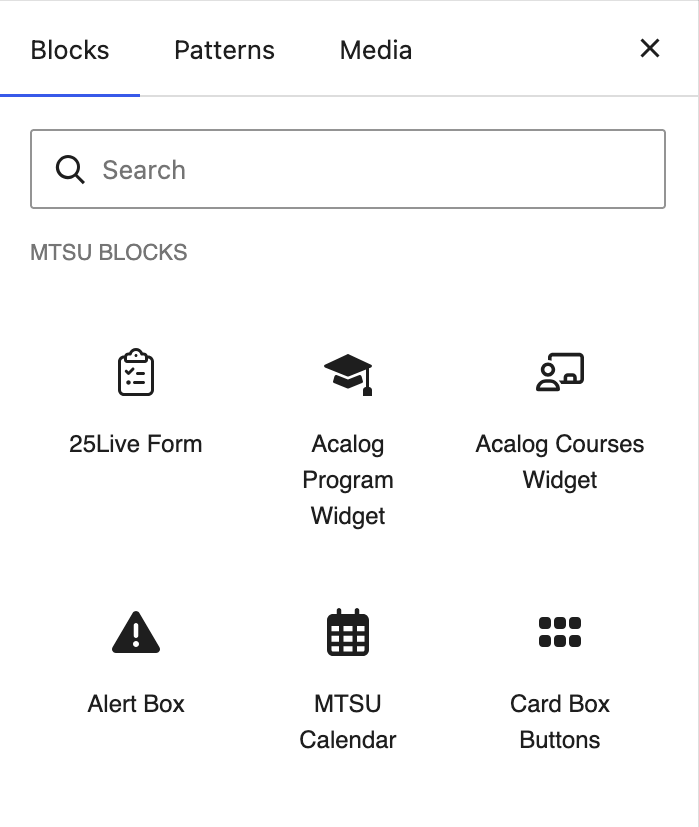
The Block Inserter provides access to WordPress blocks, patterns, media, and MTSU-specific custom blocks.
- Blocks
- Browse and insert individual content blocks, such as headings, paragraphs, images, and buttons.
- Patterns
- Insert pre-designed layouts made up of multiple blocks.
- Media
- Access images and other media available for use on your page.
- Search
- Quickly locate a block by entering its name.
- MTSU Custom Blocks
- Access custom blocks created specifically for MTSU websites.
Adding a Block
To add a block:
- Select the + Block Inserter.
- Search for a block or browse the available options.
- Select the desired block.
- Add your content.
Moving and Rearranging Blocks
Blocks can be reorganized at any time.
To move a block:
- Select the block.
- Use the Move Up or Move Down controls in the block toolbar.
- Or drag and drop the block to a new location within the page.
Tip: Moving a block does not affect the content within the block. It only changes where the block appears on the page.

Block Settings
Many blocks include settings that allow you to customize their appearance, layout, and behavior. Available settings vary depending on the selected block.
Opening the Settings Panel
If the Settings panel is not visible:
- Select any block within the editor.
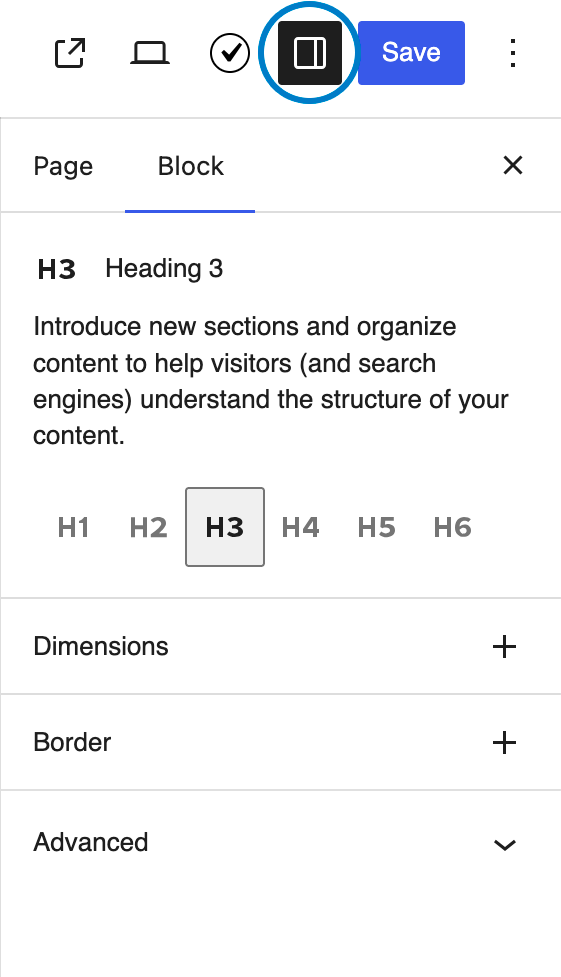
- Select the Settings icon in the upper-right corner of the editor.
- The Settings panel will open on the right side of the screen.
Accessing Block Settings
- Select a block within the editor.
- Open the Settings panel if needed.
- Adjust the available settings.
Common Settings
Depending on the selected block, you may see options for:
- Alignment and layout
- Color and style settings
- Visibility and display options
- Links and button settings
- Spacing and sizing controls
Available settings vary depending on the selected block. Refer to the Block Documentation Library for detailed information about specific blocks.
Block Documentation
The Block Documentation Library is organized into WordPress Core Blocks and MTSU Custom Blocks, making it easy to locate guidance for the block you’re using.
Use the library to learn:
- When to use a specific block
- Available settings and configuration options
- Accessibility considerations
- Examples and best practices
You do not need to memorize every block. Focus on understanding how blocks work and use the documentation library when you need help with a specific block.
Before Moving On
Add a block to a page
Search for a block
Rearrange blocks
Access block settings
Locate block documentation
Next Module: Images & Documents
- Upload images and documents to the Media Library
- Add images to pages and posts
- Write effective alternative text
- Link to documents accessibly
- Understand the purpose of media slugs
Need Help?
Submit a Website Change Request
Request assistance with website updates, troubleshooting, or issues.
Request Website Access
Need access to edit a website? Submit an access request.
WordPress Training Hub
Return to the training homepage.
Block Documentation
Learn more about specific WordPress blocks.