Adding Proctor U to your D2L Course NavBar

Adding Proctor U to your D2L Course NavBar
Inside your online course:
- Select the More button
- go to Edit Course
- Select Navigation & Themes under Site Setup
- Locate the Active Navbar and click the Navbar’s blue title (If you are using the default Navbar, see below)
- Select Add Links
- Locate Proctor U in the menu and check the box to the left
- Select the blue Add button
- The new ProctorU button will appear at the end of your list. You can move it to where you want it in the Navbar
- Select Save and Close
- You should see it in your Navbar
If you are using the default navbar, you must make a copy to add Proctor U.
- Locate the Default Navbar
- Go to the arrow on the left of the title and select Copy – (It will appear below the default)
- Click on the blue title of the copy, follow steps 5-10 above
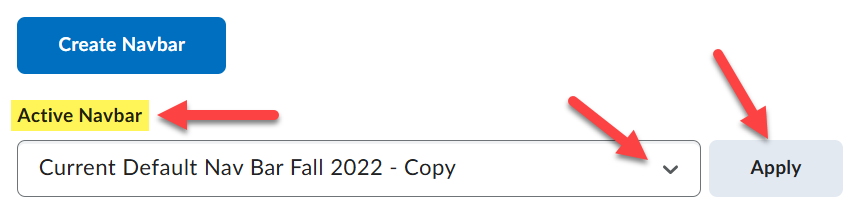
How to make the Navbar Copy the Active Navbar:
- Go to Active Navbar (under the blue button titled Create Navbar)
- Use the arrow to locate the Navbar Copy
- Select Apply
Remember: Record+ has no scheduling at all.
Once instructors configure the exam for proctoring, the students just have to click on that ProctorU link, access their dashboard and select to Start their Record+ exam. No scheduling, they will just see all open exams to begin in their account.
If you have any questions, please contact MTSU Online Faculty Support Request.