SSB
Student/Admissions
The way students are able to view their information regarding transcripts, grades, and admissions will be changing under SSB9 to be included under a “Student Profile.” This profile is a way to gather all important information in one place for easy navigation. The anticipated go-live date for this is February 2026.
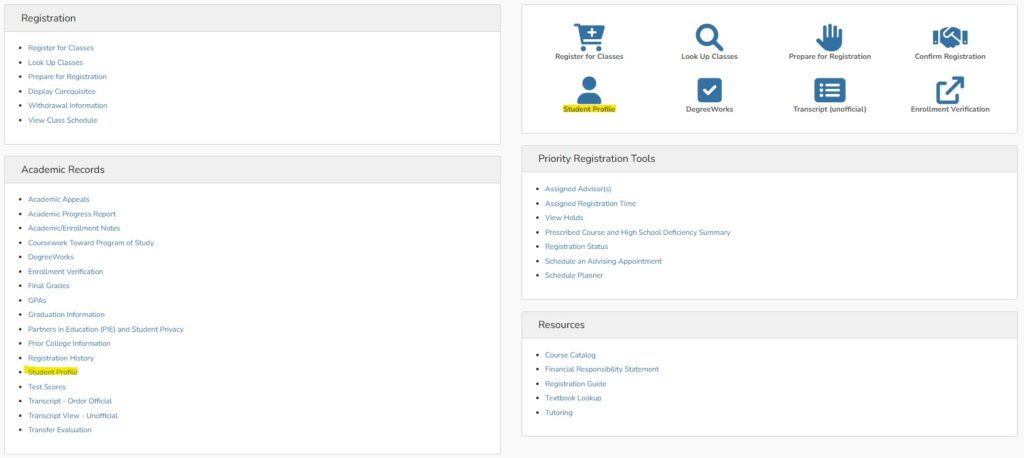
To get to your student profile, go to the Registration and Student Records menu in PipelineMT and click the link “Student Profile” under the Academic Records section. There is also an icon for Student Profile in the top right menu. A number of other links will also take you to the profile on this page, such as Assigned Advisor(s), GPAs, Prior College Information, and Test Scores.
Your Student Profile will have a Term in the top left hand corner. Make sure the term is the correct one to see your most current information. You will see your current student standing at the top as well, based on the term selected. On the right side of the screen you will see your registration status and and holds on your account that may prevent registration, transcripts, or grades.

On the right side of the screen it lists your student information such as program of study, minors, and admission type. If you are a dual degree student, your second degree information will be shown under the “Secondary” tab. You are also able to see your current GPA and total hours by selecting that tab. The Overall GPA is used for graduation purposes while the Combined GPA is used to determine academic and financial aid eligibility.

Based on the term you selected, your class schedule will be visible on the bottom right of the screen. You are also able to view your awarded degrees, assigned advisor, and other student information in the middle of the screen. Note that the Graduation Information section will not show if you have submitted an Intent to Graduate on file.
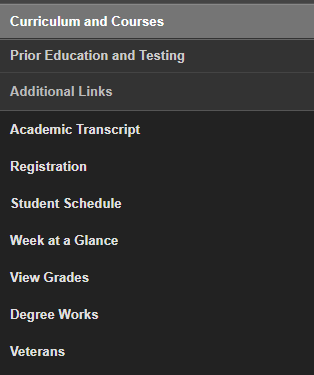
The left menu will take you to other important links, including your transcript, registration screens, grades, and DegreeWorks:
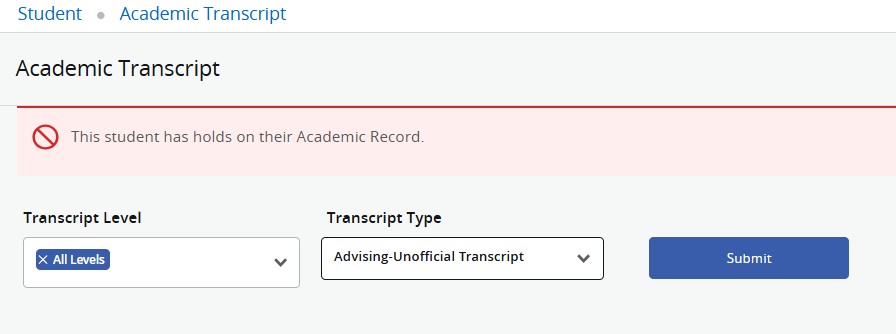
The Academic Transcript is your unofficial transcript. You will be asked to select the level (undergraduate, graduate, or all levels) and transcript type (only one option). If you have any holds on your account, you’ll be notified at the top of the screen.
Once in your transcript, you can view your current information, degrees awarded, credit earned, and different GPA calculations.If you need an official transcript with your name on it, go to mtsu.edu/transcripts to order one or visit the MT One Stop.

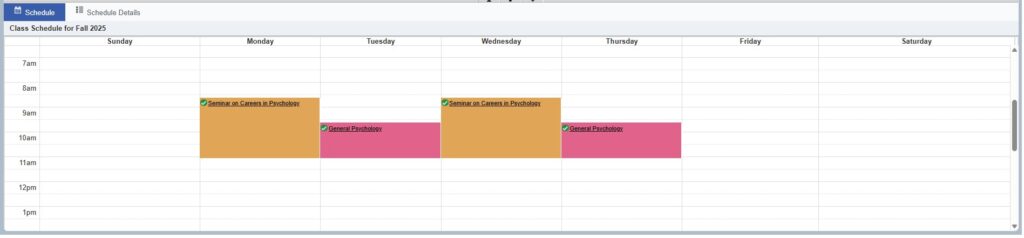
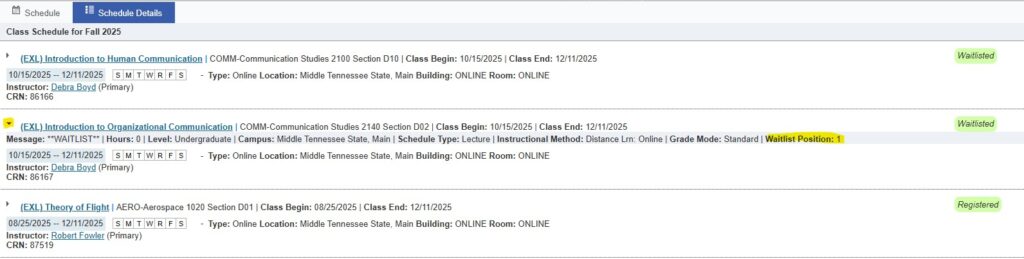
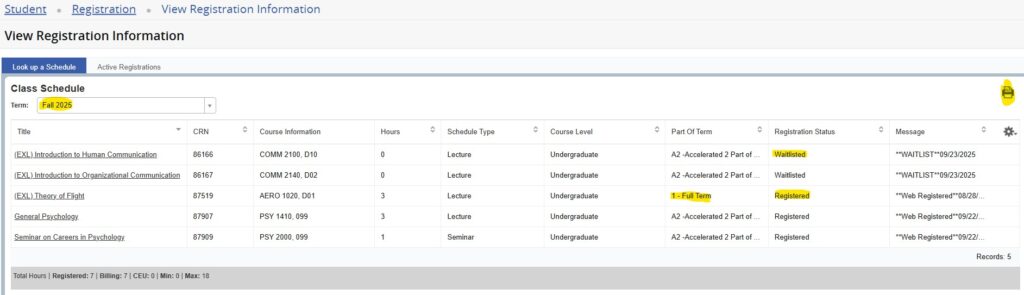
When selecting “Student Schedule” or “Week at a Glance” from the left menu, it will take you to the Registration screens. This screen will default to your first term at MTSU, so you must selet the term you are trying to view at the top. Once selected you will be able to see the classes you are both registered for and also on the waitlist, if applicable. The part of term for the course will be visible as well, so you know when the course will meet.
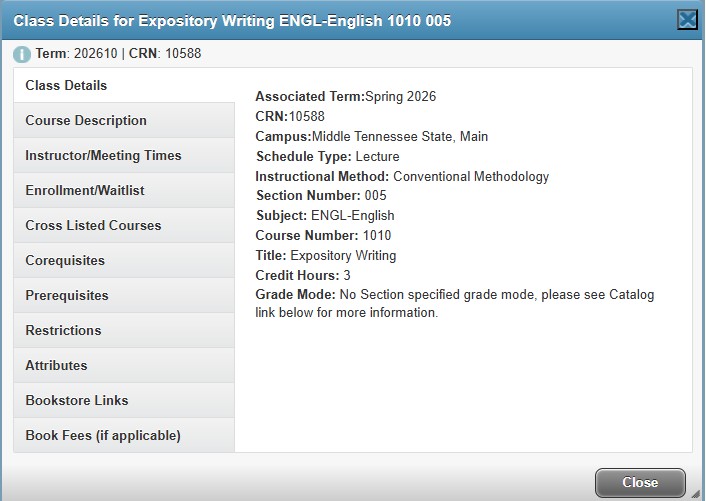
If you click on the title of the course, you are able to pull up details about the course. Information here includes course description, attributes, and instructor information.
You can also view your schedule as a week at a glance or in detail form on this page if you need different information. The schedule details will allow you to see what position you are on the waitlist, if applicable.