
MTSU Web Training Hub
Logging in & Dashboard Basics
Welcome
Now that you have access to your website, it’s time to become familiar with WordPress. In this module, you’ll learn how to log in, navigate the Dashboard, and identify the most common tools used by content editors.
Learning Objectives
After completing this module, you will be able to:
- Log into WordPress using your MTSU credentials
- Navigate the WordPress Dashboard
- Identify common administrative tools
- Understand basic WordPress terminology
Logging In
To access WordPress:
- Navigate to your website.
- Add
/wp-adminto the end of the URL.
Example
https://www.mtsu.edu/yoursite/wp-admin
- Press Enter
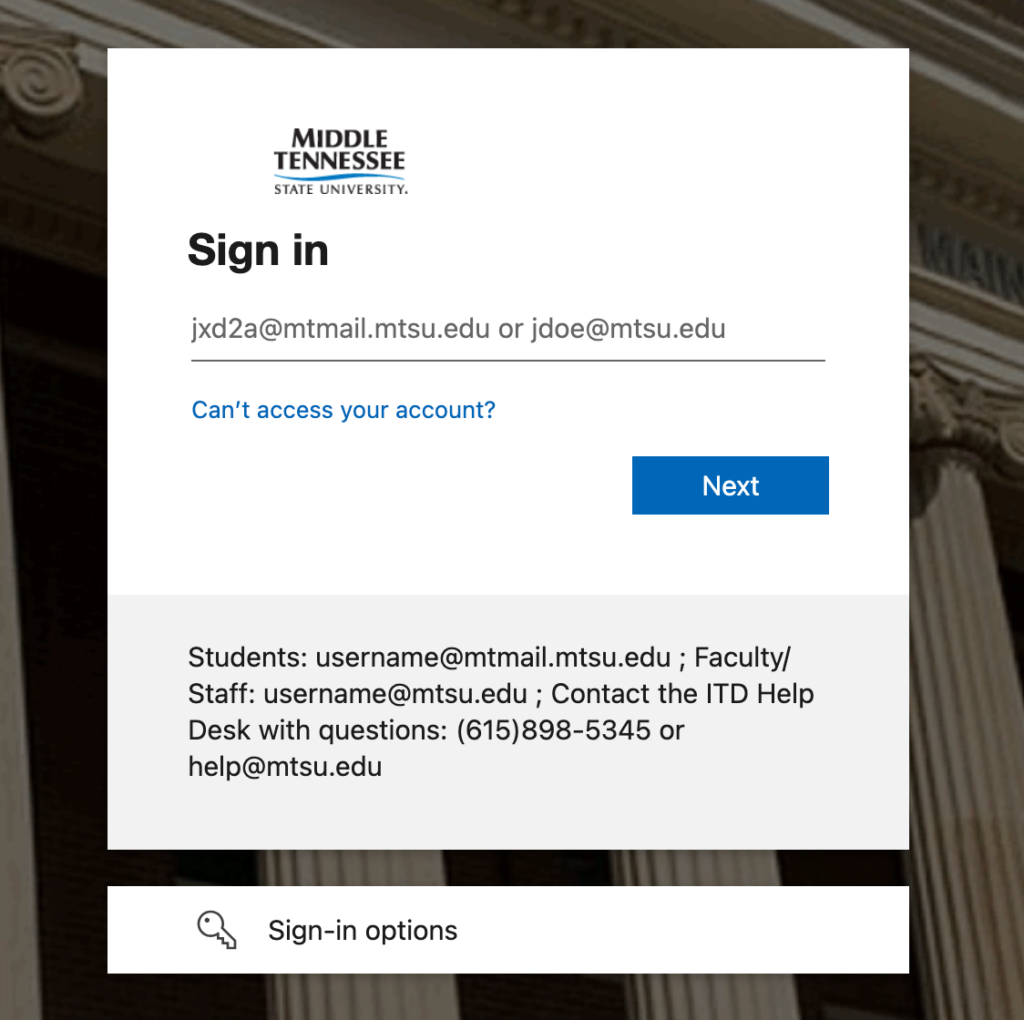
- If you are not already signed in, you will be redirected to the MTSU Single Sign-On page.
- Enter your MTSU credentials and complete any required authentication steps.
- Once authenticated, you will be redirected to your WordPress Dashboard.
Tip: If you are already signed in to another MTSU service, you may be logged in automatically without seeing the SSO screen.
Trouble Logging in?
- Confirm you have been granted access to the website.
- Verify you are using your MTSU credentials.
- Try signing out and back in.
- If you continue to experience issues, submit a Website Access Request through ServiceNow.
The WordPress Dashboard
After logging in, you’ll be taken to the WordPress Dashboard. Think of the Dashboard as your website’s control center. The numbered areas below highlight the tools most content editors use regularly. From here, you can access the tools available to you based on your role and permissions.
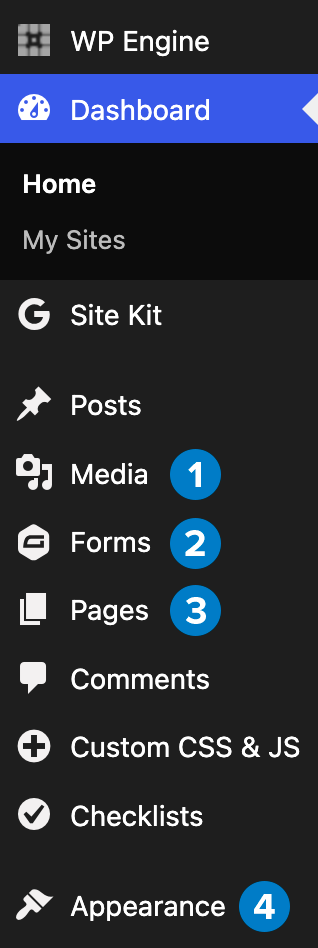
1. Pages
Create and edit website content, including department pages, program pages, and informational pages.
2. Media
Upload and manage images, PDFs, and other files used throughout your website.
3. Forms
Create and manage online forms using Gravity Forms.
4. Appearance
Access menus, patterns, and other site-wide design elements available to your role.
Note: Depending on your permissions, additional menu items may be visible. Most content editors will primarily work within Pages, Media, Forms, and Appearance.
Before You Start Editing Content
Before you begin editing pages, there are a few WordPress terms you’ll encounter throughout this training.
Block
A block is a content element used to build a page, such as a heading, paragraph, image, or button.
Draft
Content that has been saved but is not yet visible on the website. Drafts allow you to continue working before publishing.
Published
Content that is visible to site visitors. Published content appears on the live website.
Before Moving On
Before continuing, make sure you can:
Log into WordPress
Locate the Pages section
Locate the Media Library
Locate Forms
Locate Appearance settings
Understand the difference between Draft and Published content
Next Module: Editing Content
Learn how to:
- Open and edit existing pages
- Update content using the Block Editor
- Add new blocks to a page
- Move and rearrange blocks
- Save your changes
Need Help?
Submit a Website Change Request
Request assistance with website updates, troubleshooting, or issues.
Request Website Access
Need access to edit a website? Submit an access request.
WordPress Training Hub
Return to the training homepage.
Block Documentation
Learn more about specific WordPress blocks.