
MTSU Web Training Hub
Choosing a Page Template
Page templates control the layout and structure of content on a page. Choosing the appropriate template helps ensure content is presented consistently and supports the needs of visitors.
Use this job aid to view and update the template assigned to a page.
Before You Begin
- Review the purpose of the page before selecting a template.
- Understand how the selected template affects the page layout.
- Verify any content updates have been reviewed and approved.
- Review changes carefully before publishing.
Need help choosing a template? Review the Page Templates reference guide for descriptions and examples of each available template.
Steps
1
Open the Page
- Log in to WordPress.
- Select Pages from the left navigation menu.
- Open the page you wish to update.
2
Open Page Settings
- Select the Settings icon in the upper-right corner of the editor if the settings panel is not already visible.
- Confirm the Page tab is selected.

3
Locate the Template Setting
- Scroll within the Page Settings panel.
- Locate the Template setting.

4
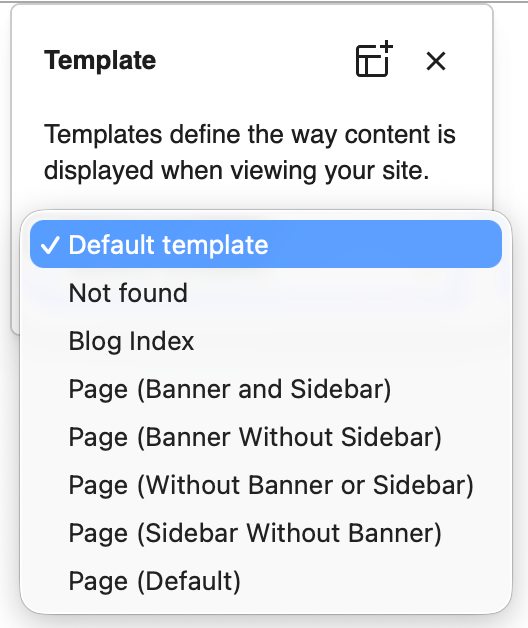
Select a Template
- Open the Template dropdown menu.
- Select the template you want to use.
- Review the page layout after applying the template.
5
Save Changes
- Review your updates.
- Click Save or Update.
6
Verify the Page Layout
- View the page on the live website.
- Confirm the layout appears as expected.
- Verify content is displaying correctly.
- Ensure any sidebar or banner content appears properly.
Tips
Preview layout changes before publishing
Review the page carefully after changing templates to ensure content displays correctly.Consider sidebar content
Some templates display sidebar content while others do not. Verify important information remains visible.Review banner visibility
Templates may display or hide the website banner depending on the selected layout.Test the page after changing templates
Always review the live version of the page before considering the task complete.
Common Mistakes to Avoid
Changing templates without reviewing the page
Template changes can affect content layout and spacing.Assuming all templates display content the same way
Different templates may display banners, sidebars, or content areas differently.Publishing without testing the layout
Always verify the page displays correctly on the live website.Overlooking template-specific content areas
Some templates may include or exclude shared content such as banners or sidebars.
Need Help?
Submit a Website Change Request
Request assistance with website updates, troubleshooting, or issues.
Request Website Access
Need access to edit a website? Submit an access request.
WordPress Training Hub
Return to the training homepage.
Block Documentation
Learn more about specific WordPress blocks.