
MTSU Web Training Hub
Create and Embed a Form
Forms allow website visitors to submit information electronically. Use this job aid to create a new Gravity Form and embed it on a WordPress page.
For additional form-related tasks, see:
Before You Begin
- Determine what information you need to collect.
- Keep forms as short and simple as possible.
- Identify who should receive form submissions.
- Review accessibility best practices when creating forms.
Steps
1
Create a New Form
- Create a New Form
- Log in to WordPress.
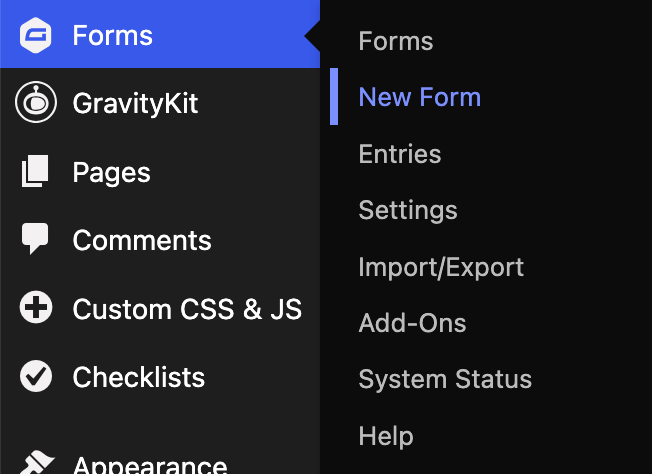
- Hover over Forms in the left navigation menu.
- Select New Form.
- Enter a form title.
- Click Create Form.
2
Add Form Fields
- Use the field panel to add the necessary form fields.
- Drag and drop fields into the desired order.
- Configure field settings as needed.
- Mark fields as required when appropriate.

3
Save the Form
- Review the form structure and field settings.
- Click Save Form.

4
Open the Page
- Navigate to the page where the form should appear.
- Open the page in the WordPress editor.

5
Add the Gravity Forms Block
- Select the Add Block (+) button.
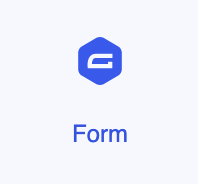
- Search for Gravity Forms.
- Add the Gravity Forms block to the page.
6
Select the Form
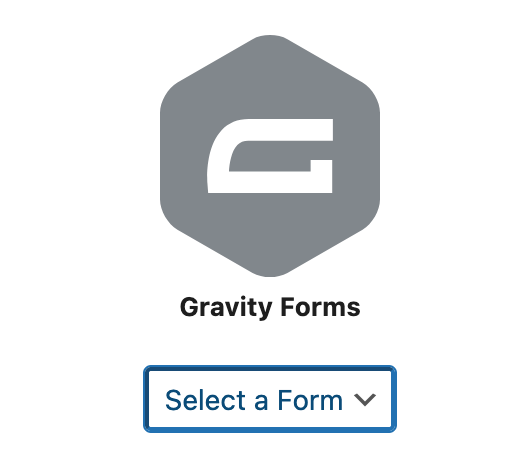
- Choose the form you created from the dropdown list.
- Verify the correct form is selected.
7
Save and Test the Form
- Update or publish the page.
- View the page on the live website.
- Submit a test entry.
- Confirm the form displays and submits correctly.
Tips
Collect only the information you need
Shorter forms are easier for visitors to complete and maintain.Use clear field labels
Forms should clearly communicate what information is being requested.Mark only necessary fields as required
Too many required fields can discourage users from completing a form.Test the form before sharing it
Always submit a test entry to verify the form works as expected.Review notification settings after creating a form
Ensure form submissions are sent to the correct individual or department.
Common Mistakes to Avoid
Creating unnecessarily long forms
Large forms can reduce submission rates and increase maintenance needs.Using unclear field labels
Visitors should immediately understand what information is being requested.Marking too many fields as required
Require only the information necessary to process the submission.Embedding the wrong form
Always verify the selected form before publishing the page.Publishing without testing
Submit a test entry to confirm the form displays and functions correctly.
Need Help?
Submit a Website Change Request
Request assistance with website updates, troubleshooting, or issues.
Request Website Access
Need access to edit a website? Submit an access request.
WordPress Training Hub
Return to the training homepage.
Block Documentation
Learn more about specific WordPress blocks.