
MTSU Web Training Hub
Menus & Site Navigation
Navigation helps visitors find the information they need quickly and easily.
A well-organized navigation structure improves the user experience, supports accessibility, and helps users understand how content is organized across your website.
In this module, you’ll learn how website navigation works, how menus are structured, how to manage navigation menus, and how to maintain clear, user-friendly navigation.
Learning Objectives
By the end of this module, you will be able to:
- Explain the purpose of website navigation.
- Identify common navigation structures.
- Add and update menu items.
- Organize content into logical sections.
- Apply navigation best practices to improve usability.
Why Navigation Matters
Visitors rarely arrive at a website knowing exactly where information is located.
Effective navigation helps visitors:
- Find information quickly
- Understand how content is organized
- Explore related content
- Complete tasks more efficiently
- Avoid frustration
Even high-quality content can be difficult to use if navigation is confusing or inconsistent.
Understanding Website Navigation
Navigation helps visitors move between pages and understand how content is organized.
Common navigation elements include:
- Main navigation menus
- Dropdown menus
- Navigation links within page content
- Related content links
Most visitors rely on navigation to find information rather than searching for it directly.
Organizing Navigation Effectively
A website should be organized into logical sections that reflect how visitors think about information.
Organize Content into Sections
About Us
- Mission & History
- Leadership
- Contact Information
Academics
- Degree Programs
- Courses
- Advising Resources
Resources
- Forms
- Policies
- Student Services
Grouping related content helps visitors locate information more quickly.
Naming Menu Items
Each menu item should clearly describe the page it links to.
Good Examples
✅ Faculty & Staff Directory
✅ Academic Programs
✅ Student Resources
✅ Contact Us
Less Effective Examples
❌ Information
❌ Resources
❌ Miscellaneous
❌ Learn More
Menu labels should help visitors understand what they will find before they click.
Accessing Navigation Menus
To manage website navigation:
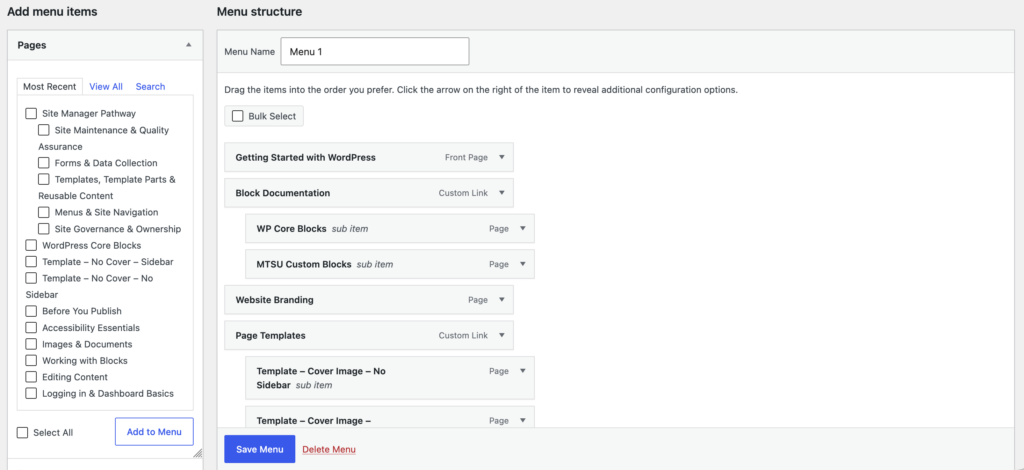
- Log in to WordPress.
- Open the Appearance section of the dashboard.
- Select Menus (or the navigation management option available on your site).
- Choose the menu you want to update.
Note: Available menu management options may vary depending on your site’s theme and configuration.
Navigation Limits
MTSU websites use a standardized navigation structure to help maintain a consistent user experience.
- Main navigation supports up to 7 top-level menu items.
- Navigation supports one level of submenu items.
- Additional menu items or submenu levels may not display correctly on the live website.
Working with Navigation Menus
As a Site Manager, you may periodically update menus as content changes, new pages are added, or outdated information is removed.
Menus are used to connect visitors to important content throughout your website.
Common navigation tasks include:
- Adding menu items
- Removing outdated links
- Updating page titles
- Reordering navigation items
- Creating dropdown menus
Using Dropdown Menus
Dropdown menus help organize large amounts of content.
They can improve navigation when used appropriately.
Example
Academics
- Undergraduate Programs
- Graduate Programs
- Certificates
- Advising
Best Practices
✅ Group related content together
✅ Use clear labels
✅ Keep menu structures simple
✅ Limit the number of menu levels
Avoid
❌ Large, complicated dropdowns
❌ Multiple levels of nested navigation
❌ Duplicate navigation items
Common Navigation Issues
Review your website navigation regularly for:
- Broken links
- Outdated page titles
- Duplicate menu items
- Important pages that are difficult to find
- Complex menu structures
- Inconsistent organization
Small navigation problems can make it difficult for visitors to find important information.
Navigation Best Practices
Do
✅ Use clear page names
✅ Organize content logically
✅ Keep navigation simple
✅ Group related information together
✅ Review navigation regularly
✅ Consider the visitor’s perspective
Avoid
❌ Creating overly complicated menus
❌ Using vague navigation labels
❌ Adding duplicate links
❌ Leaving outdated pages in navigation
❌ Frequently reorganizing menus without a clear reason
Site Manager Checklist
Use this checklist when reviewing website navigation.
Verify menu links are working
Remove outdated navigation items
Confirm page titles are accurate
Review dropdown menu organization
Check sidebar navigation for consistency
Verify important pages are easy to find
Remove duplicate or unnecessary links
Test navigation from a visitor’s perspective
Remember
- Navigation helps visitors find information quickly.
- Clear navigation improves usability and accessibility.
- Menu labels should be specific and descriptive.
- Consistent navigation supports a better user experience.
- Regular reviews help prevent navigation issues over time.
Before Moving On
Explain the purpose of website navigation
Identify common navigation structures
Add and update menu items
Organize content into logical sections
Recognize common navigation issues
Apply navigation best practices
Next Module: Templates, Template Parts & Reusable Content
Learn how to:
- Identify the standard page templates used on MTSU websites
- Choose the appropriate template for different content needs
- Work with Top Banner and Sidebar template parts
- Use patterns and reusable content to create consistent layouts
- Reduce maintenance through reusable content
Need Help?
Submit a Website Change Request
Request assistance with website updates, troubleshooting, or issues.
Request Website Access
Need access to edit a website? Submit an access request.
WordPress Training Hub
Return to the training homepage.
Block Documentation
Learn more about specific WordPress blocks.